

How to Turn Off Location Tracking on iPhone and Android
 BeatrizNovember 23, 20264 Mins read35
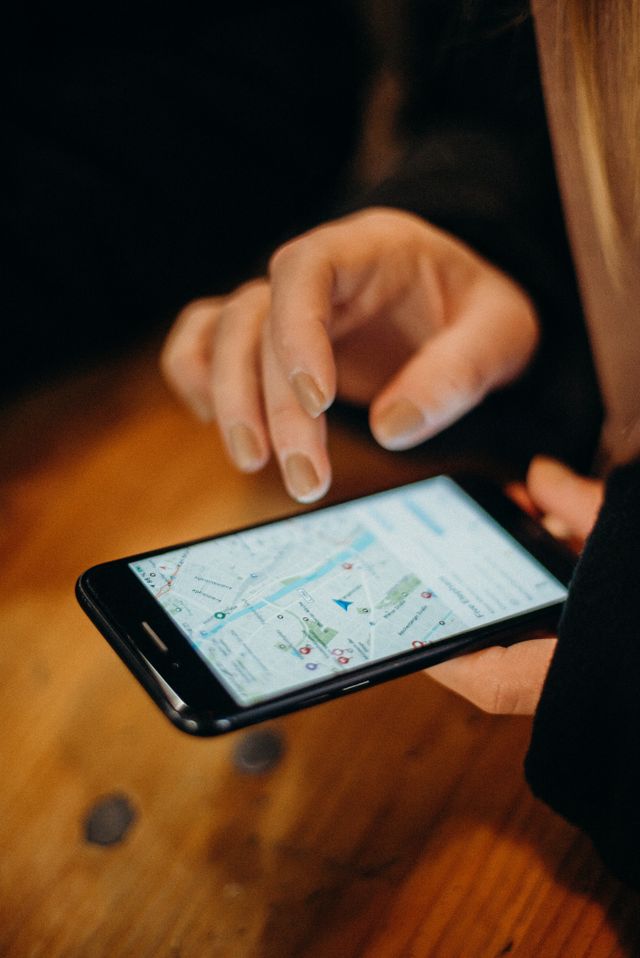
Your smartphone can reveal more about your daily life than you may realize. Apps can use your location to suggest nearby restaurants, provide directions, and deliver local weather updates. However, some apps may collect location information even when you do not need those features.
Learning how to turn off location tracking gives you more control over who can access your location. You can change these settings on both iPhone and Android. This guide shows you how to stop unnecessary location access and protect your privacy.
Why Do Apps Track Your Location?
Apps use location tracking for different reasons. Google Maps needs your location to provide directions. Weather apps use it to show local forecasts. Shopping apps may use it to find nearby stores.
However, not every app needs this information.
For example, a simple calculator does not need to know where you live or work. A game may also request location access without offering a clear reason.
Some apps can collect location data in the background if you allow them to access it continuously. This is why reviewing your phone’s privacy settings is important.
How to Turn Off Location Tracking on iPhone
Apple allows you to control which apps can access your location. You can also disable Location Services across the entire device.
1. Turn Off Location Services Completely
Follow these steps:
- Open the Settings app.
- Select Privacy & Security.
- Tap Location Services.
- Turn off the Location Services switch.
- Confirm your choice if your phone asks.
This stops most apps from accessing your device’s location through Apple’s Location Services.
However, emergency services may still receive location information when you make an emergency call. Websites and services may also estimate your location using your IP address.
2. Stop Individual Apps From Tracking You
You may not want to turn off location services completely. For example, you may still need Google Maps for directions.
Instead:
- Open Settings.
- Select Privacy & Security.
- Tap Location Services.
- Choose an app from the list.
- Select Never to block its location access.
You can also choose While Using the App if you only want location access when the app is open.
For apps that need location but do not require your exact position, turn off Precise Location where available.
3. Stop Sharing Your Location With Other People
Your location may also be shared through Apple’s Find My service.
To review this:
- Open the Find My app.
- Select the People tab.
- Review the people who can see your location.
- Select a person and stop sharing if necessary.
You can also review location sharing through Messages and other Apple services.
If you are concerned about someone accessing your private information, Apple’s Safety Check can help you review and stop certain sharing arrangements.
How to Turn Off Location Tracking on Android
Android phones from Samsung, Google, Tecno, Infinix, and other brands have location controls. The exact menu names may differ, depending on your Android version.
1. Turn Off Location on Your Android Phone
Follow these steps:
- Open Settings.
- Tap Location.
- Find Use location.
- Turn it off.
On some phones, you can also swipe down from the top of the screen twice and turn off Location through Quick Settings.
This stops most apps and services from accessing your device’s location through Android’s location service.
2. Stop Individual Apps From Accessing Your Location
You can block apps that do not need location information.
- Open Settings.
- Select Location.
- Tap App location permissions.
- Review the list of apps.
- Select an app.
- Choose Don’t allow.
You can also choose Allow only while using the app or turn off Use precise location.
For example, you may allow a taxi app to access your location while booking a ride but prevent a simple game from tracking you.
3. Review Google Location Sharing
Turning off your phone’s location setting does not automatically stop every location-sharing service linked to your Google account.
Open Google Maps and follow these steps:
- Tap your profile picture.
- Select Location sharing.
- Review who can see your location.
- Stop sharing with anyone you no longer want to have access.
Also review Google Maps Timeline and your Google Account location settings if you want to manage saved location history.
Other Ways to Protect Your Location Privacy
Turning off location services is a useful first step, but it does not make you completely invisible online.
Websites can estimate your location through your IP address. Mobile networks also know which cell towers your phone connects to.
Here are additional ways to improve your privacy:
- Review app permissions: Remove access that apps do not need.
- Limit background activity: Restrict apps that continue running when you are not using them.
- Review account sharing: Check Google and Apple accounts for unfamiliar devices and sharing arrangements.
- Use a trusted VPN: A VPN can hide your public IP address from websites, although it does not turn off GPS tracking or app permissions.
Our guide to how to tell if your phone is being tracked or tapped explains other warning signs of unwanted monitoring.
You can also read about how VPNs work and online privacy to understand what VPNs can and cannot hide.
For more ways to protect your personal information, explore our guide to computer antivirus software.
The Bottom Line
Learning how to turn off location tracking helps you control which apps and services can access your location.
Both iPhone and Android allow you to turn off location services completely or restrict individual apps. You should also review location sharing through Google and Apple accounts.
Remember that turning off GPS access does not make you completely invisible online. Review your privacy settings regularly and only share location information when necessary.
Frequently Asked Questions
Can someone track my phone if location is turned off?
Turning off location services blocks most apps from accessing your device’s GPS location. However, mobile networks, IP addresses, account activity, and other signals may still reveal approximate location information.
Does turning off location tracking affect Google Maps?
Yes. Google Maps may not provide accurate live directions when it cannot access your location. You can still search for places and enter destinations manually.
Does airplane mode stop location tracking?
Airplane mode turns off cellular connections, but GPS may still work on some phones. Wi-Fi and Bluetooth can also be switched back on. Therefore, airplane mode is not a complete privacy solution.
Can a VPN stop phone location tracking?
No. A VPN hides your public IP address from websites and services you connect to. It does not stop apps from accessing your GPS location when they have permission.





What Is a Keylogger? 5 Signs One Is Running on Your PC
Imagine logging into your email, checking your bank account, or sending a...
Beatriz4 Mins read

How to Block Spam Calls and Texts on iPhone and Android
Spam calls and unwanted messages can interrupt your day and expose you...
Beatriz4 Mins read

What Does the Green Dot Mean on Snapchat Profile?
If you are wondering what the green dot means on a Snapchat...
 Zahra_Alialiali6 Mins read
How to Tell If Your Phone Is Being Tracked or Tapped (7 Signs)
Your phone contains private information, including messages, photos, passwords, and location details....
Beatriz4 Mins read





Leave a comment