

DynoBot Discord: Complete Guide to Setup and Commands
 Zahra_AlialialiNovember 17, 20266 Mins read29
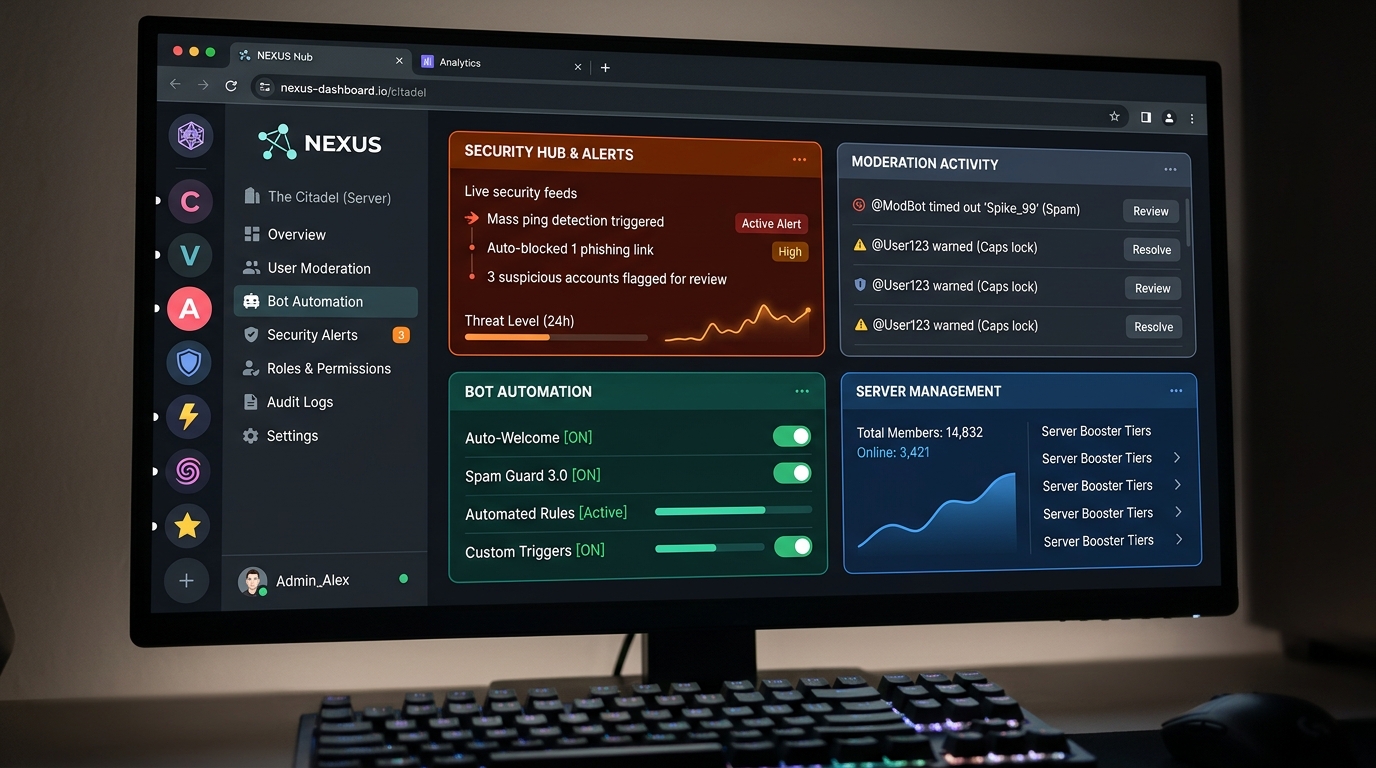
If you are searching for DynoBot Discord, you are probably looking for a way to moderate and manage your Discord server automatically.
Dyno is a customizable Discord bot with a web dashboard for moderation, AutoMod, logging, custom commands, roles, announcements, reminders, and other server-management features. Dyno’s official site says the bot is used on more than 11.6 million servers.
One important update matters for anyone following older Dyno tutorials: normal Dyno prefix commands were removed on October 13, 2026. Most standard commands now use Discord slash commands such as /ban and /mute. Custom Commands and Mention Commands still work.
Before adding any bot to a server, it is also worth following a secure by design cybersecurity approach and giving the bot only the permissions it actually needs.
What Is DynoBot on Discord?
Dyno is a third-party Discord bot designed to help server owners and moderators automate common tasks.
Its features include:
- Moderation
- AutoMod
- Anti-spam controls
- Mod logs
- Autoroles
- Custom Commands
- Welcome messages
- Announcements
- Reminders
- Reaction roles
- Giveaways
- Forms
- Server automation
Most configuration takes place through the Dyno web dashboard rather than directly inside Discord. Dyno’s documentation provides separate guides for its modules and commands.
How to Add DynoBot to Discord
You need to own the server or have the Manage Server permission to add Dyno.
Follow these steps:
- Open the official Dyno website.
- Choose the option to add Dyno to your server.
- Sign in to Discord if required.
- Select your server.
- Review the permissions requested by Dyno.
- Select Authorize.
- Complete any Discord verification.
- Open the Dyno dashboard.
- Select your server and begin configuration.
The server should then show Dyno in its member list.
Do not automatically grant every available permission without reviewing them. The permissions Dyno needs depend on the modules and actions you intend to use.
How to Configure DynoBot
After installation, open the Dyno dashboard and select your server.
The dashboard provides controls for areas such as:
- Commands
- Moderation
- AutoMod
- Logs
- Autoroles
- Custom Commands
- Announcements
- Welcome messages
You can also control which roles and channels can use individual commands. Dyno’s current documentation explains that allowed roles or channels can restrict command access, while Dyno Manager permissions can override those restrictions.
How to Use Dyno Commands in 2026
This is one of the most important differences between current Dyno usage and older tutorials.
Use Slash Commands
Normal Dyno commands now use Discord’s slash-command system.
For example, type / in a Discord channel and select the Dyno command you want.
You may see commands such as:
/ban/kick/mute/warn/purge/role/announce
Dyno officially removed its normal prefix commands after October 13, 2026.
What Happened to the ? Prefix?
Older Dyno guides commonly show commands such as ?ban, ?mute, and ?warn.
Those instructions are now outdated for standard Dyno commands.
The Dyno prefix still matters for Custom Commands, but it no longer works as the normal command method for standard Dyno commands. Dyno’s documentation confirms that prefixes now apply to Custom Commands.
Mention Commands
Dyno also continues to support Mention Commands.
For example, you can mention Dyno and request help rather than relying on the old prefix system. Dyno confirms that Mention Commands continue to work after the prefix-command removal.
How to Set Up Dyno AutoMod
AutoMod helps reduce unwanted content and repetitive manual moderation.
To configure it:
- Open the Dyno dashboard.
- Select your server.
- Open Modules.
- Select AutoMod.
- Enable the module.
- Choose your filters.
- Configure the action.
- Select ignored channels or roles where appropriate.
- Save the rule.
- Test it before using it across the entire server.
Dyno supports filters for areas such as banned words, spam, spoilers, and prohibited links. The exact permissions required can depend on the actions you enable.
Test AutoMod with a non-administrator account. Administrators and certain Dyno roles can be exempt from rules, which can make a working rule appear broken during testing.
How to Set Up Dyno Logs
Logs help moderators understand what happens inside a server.
Create a private moderation channel such as #mod-logs, then configure Dyno to send appropriate events there.
Useful logs can include:
- Member joins
- Member leaves
- Deleted messages
- Moderation actions
- AutoMod events
- Command activity
- Dashboard changes
Keep moderation logs private because they may contain information that should not be visible to ordinary members.
This logging approach can also support broader incident response when suspicious activity affects a community or its moderators.
How to Configure Dyno Roles
Dyno needs the correct role position to manage other roles.
Open:
Server Settings → Roles
Then make sure the Dyno role sits above the roles it needs to manage.
Discord’s role hierarchy still applies. Dyno cannot manage a role that sits above its own highest role, even if the bot has the relevant permission.
Use the minimum role-management access necessary for your server.
How to Fix DynoBot When It Is Not Working
If Dyno does not respond, check these areas first:
Check the Command
Make sure you are using a current slash command rather than an old prefix command.
Check Permissions
Dyno needs appropriate permissions in the channel where you are using it.
Check the Module
A command may not work if its related module or command has been disabled.
Check Role Hierarchy
Dyno cannot moderate members or manage roles above its position.
Check Channel Restrictions
The command may be restricted to specific channels or roles.
Check Dyno Status
If Dyno itself is offline, local permission changes may not solve the problem.
Dyno’s own troubleshooting guidance recommends checking command settings, channel permissions, and whether the relevant command or module is enabled.
Is DynoBot Safe to Use?
Dyno is a widely used third-party Discord bot, but installing any bot requires careful permission management.
The main security issue is not simply whether the bot is popular. It is also what access you give it and who can control its dashboard.
Dyno’s documentation notes that Dyno Manager access can provide broad control over settings and commands. Therefore, only trusted administrators should receive that level of access.
For a wider view of managing security risks, see our cybersecurity risk assessment guide.
DynoBot Discord Setup Checklist
Before considering your setup complete, check:
- Dyno is installed on the correct server.
- Requested permissions were reviewed.
- Dyno’s role is correctly positioned.
- Slash commands are working.
- AutoMod rules have been tested.
- A private moderation-log channel exists.
- Moderator permissions are restricted.
- Dyno Manager access is limited to trusted users.
- Unnecessary modules are disabled.
- Custom Commands have been reviewed.
- Staff know how to respond when Dyno triggers a moderation action.
Conclusion
DynoBot Discord provides a practical way to automate moderation, logging, AutoMod, roles, announcements, and other server-management tasks.
The most important point for new users in 2026 is that older Dyno tutorials may no longer be accurate. Standard prefix commands such as ?ban and ?mute were removed after October 13, 2026. Standard commands now use slash commands, while Custom Commands and Mention Commands remain available.
A good setup should also use careful permissions, a sensible role hierarchy, private moderation logs, tested AutoMod rules, and restricted administrator access.
Finally, do not treat Dyno as your server’s entire security strategy. Combine the bot with Discord’s own security controls, strong administrator accounts, appropriate permissions, and regular security reviews. A broader cybersecurity risk assessment can help identify other weaknesses in your Discord community and connected systems.
FAQs
What is DynoBot on Discord?
Dyno is a customizable Discord bot that helps server owners automate moderation, AutoMod, logging, roles, announcements, custom commands, and other server-management tasks.
Is DynoBot free?
Dyno offers a free tier as well as paid plans with additional features and limits. The available features can change over time, so check Dyno’s current pricing before choosing a plan.
How do I add DynoBot to my Discord server?
You need the server owner or Manage Server permission. Add Dyno through its official installation flow, select your server, review the requested permissions, and authorize the bot.
Does Dyno still use ?ban and ?mute?
No. Dyno removed normal prefix commands after October 13, 2026. Standard commands now use slash commands. Custom Commands still use a prefix.
How do I use Dyno slash commands?
Type / in a Discord channel and select the Dyno command you want. You can then enter the required arguments directly through Discord’s command interface.
Can Dyno automatically moderate spam?
Yes. Dyno’s AutoMod can be configured to detect categories such as spam, banned words, spoilers, and prohibited links, with actions chosen by the server administrator.
Why is Dyno not responding?
Check that you are using a current slash command, that Dyno has the required channel permissions, that the command is enabled, and that Dyno’s role hierarchy allows the requested action.
Can Dyno manage every role on my Discord server?
No. Dyno cannot manage roles above its own highest role in Discord’s role hierarchy. Move the Dyno role above the roles it needs to manage, while keeping the permission scope as limited as practical.






ConnectWise Cyber Breach: How Hackers Targeted 2,250 Companies
A major cyberattack on the IT company ConnectWise has exposed security risks...
 Beatriz3 Mins read

SOC Analyst Tools: Complete Beginner Guide
Security Operations Center analysts investigate suspicious activity, review alerts, and help organizations...
Zahra_Alialiali6 Mins read
Computer Forensics Tools: Complete Guide
Digital investigations depend heavily on the ability to collect and analyze evidence...
Zahra_Alialiali7 Mins read

Open Source Intelligence Tools: Complete Guide for 2026
Open-source intelligence (OSINT) has become an essential part of modern cybersecurity. Security...
Zahra_Alialiali4 Mins read




Leave a comment